
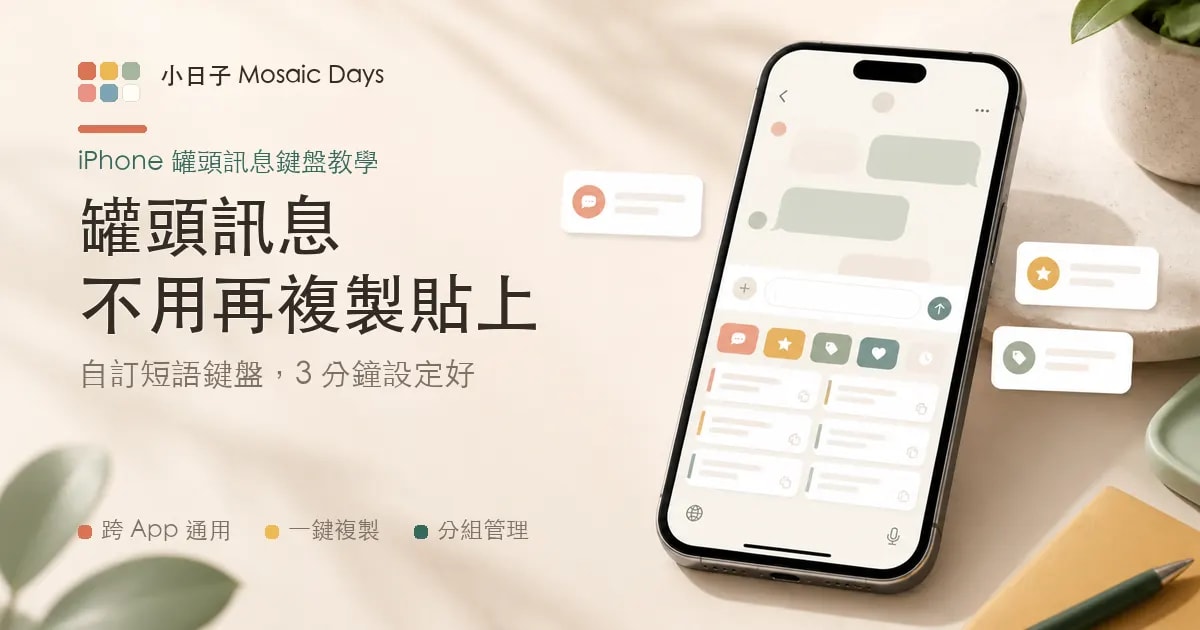
Do You Type the Same Message Every Day?
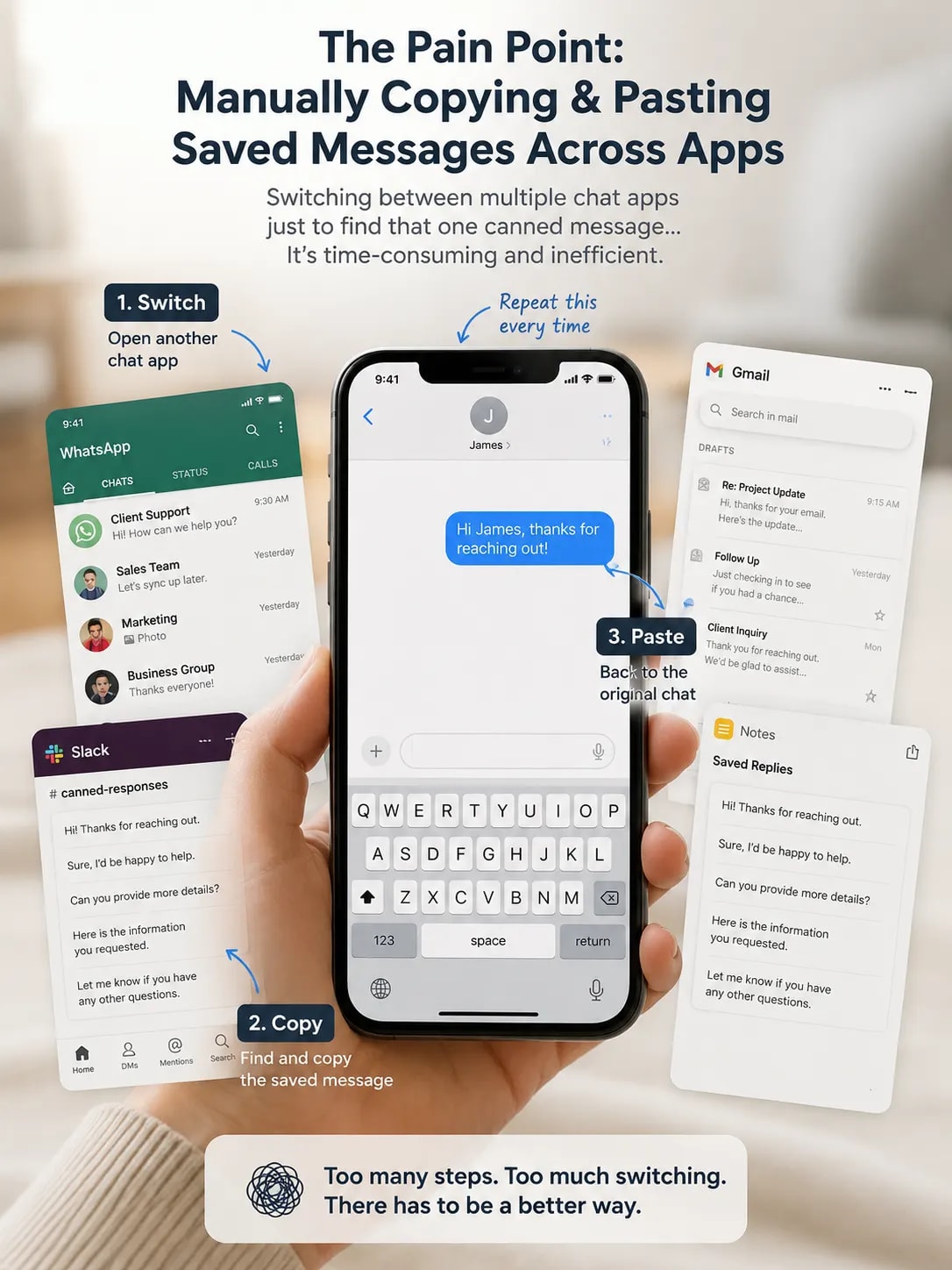
You open Shopee Chat: "Hi, this item is currently in stock — after payment, we'll ship within 1–2 business days!" Message #87. In the realtor group chat: "This unit is new, well laid out — I can arrange a viewing for you this afternoon if convenient." Copy, paste, copy, paste — until your thumb hurts. At the start of the semester, in the student contact book: "Your child did great today, remember to review what we covered in class!" — typed word-for-word, 30 times, once for each of your 30 students' parents.
Most people's workaround is to create a "Helper" LINE group and save frequently used phrases as canned messages, or build a "Frequently Used" list in Notes, switching over to copy the text and switching back to paste it. The problem: at the moment you actually need to type, you're not in LINE or Notes at all — you might be in Shopee Chat, Instagram DMs, Email, or even a client's WhatsApp. Every app switch to dig up a canned message is a moment of distraction and another 10 seconds lost.
Turns out the iPhone itself can pull up frequently used phrases while you're typing, without switching apps — the key is using a system-level custom keyboard, not some built-in tool inside a single app.
What Is a "Canned Message Keyboard" / Custom Phrase Keyboard?
"Canned messages" is common shorthand among Taiwanese sellers and customer service reps for those repetitive, fixed-content standard replies. A "custom phrase keyboard" turns these canned messages into an actual iOS system keyboard — once installed, no matter which app you're typing in, you switch to this keyboard and see your own curated list of go-to phrases right there. One tap copies it; paste it and you're done.
The biggest difference from "saving phrases in a regular notes app" is that this is a genuine iOS keyboard extension — just like an input method — that you can switch to via the globe icon in any app, without ever leaving the app you're currently using.
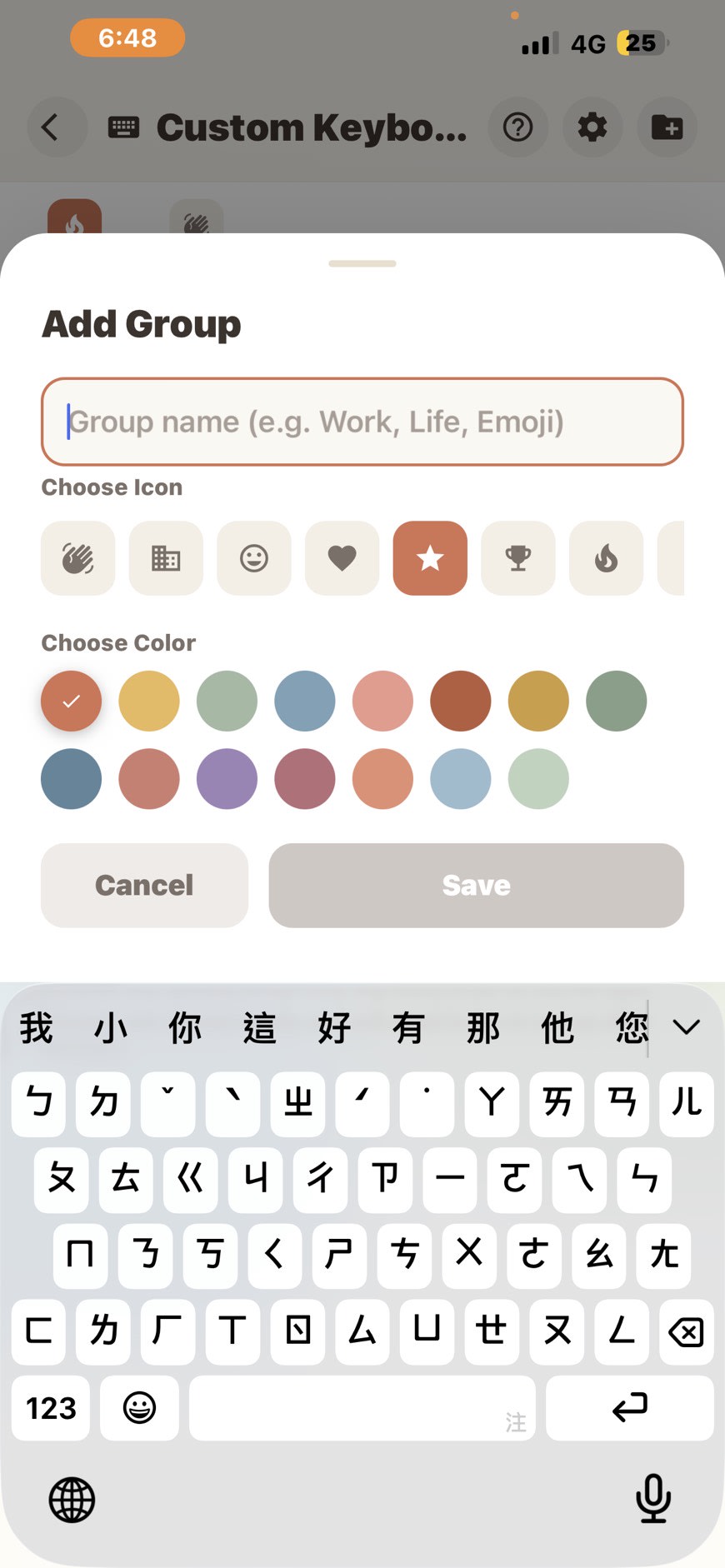
The Quick Keyboard feature built into the Mosaic Days app is designed around exactly this logic: you can organize your frequently used phrases into groups by purpose (work, greetings, addresses, notes, etc.), assign each group its own icon and color for quick recognition, and reorder phrases within a group by long-press dragging. Mid-conversation, whenever you need a particular line, you just swipe, tap, copy, and paste — all without ever leaving the chat window.
Setup Guide: Configure Your Canned Message Keyboard in 3 Minutes
Step 1 | Download Mosaic Days and Add the Keyboard
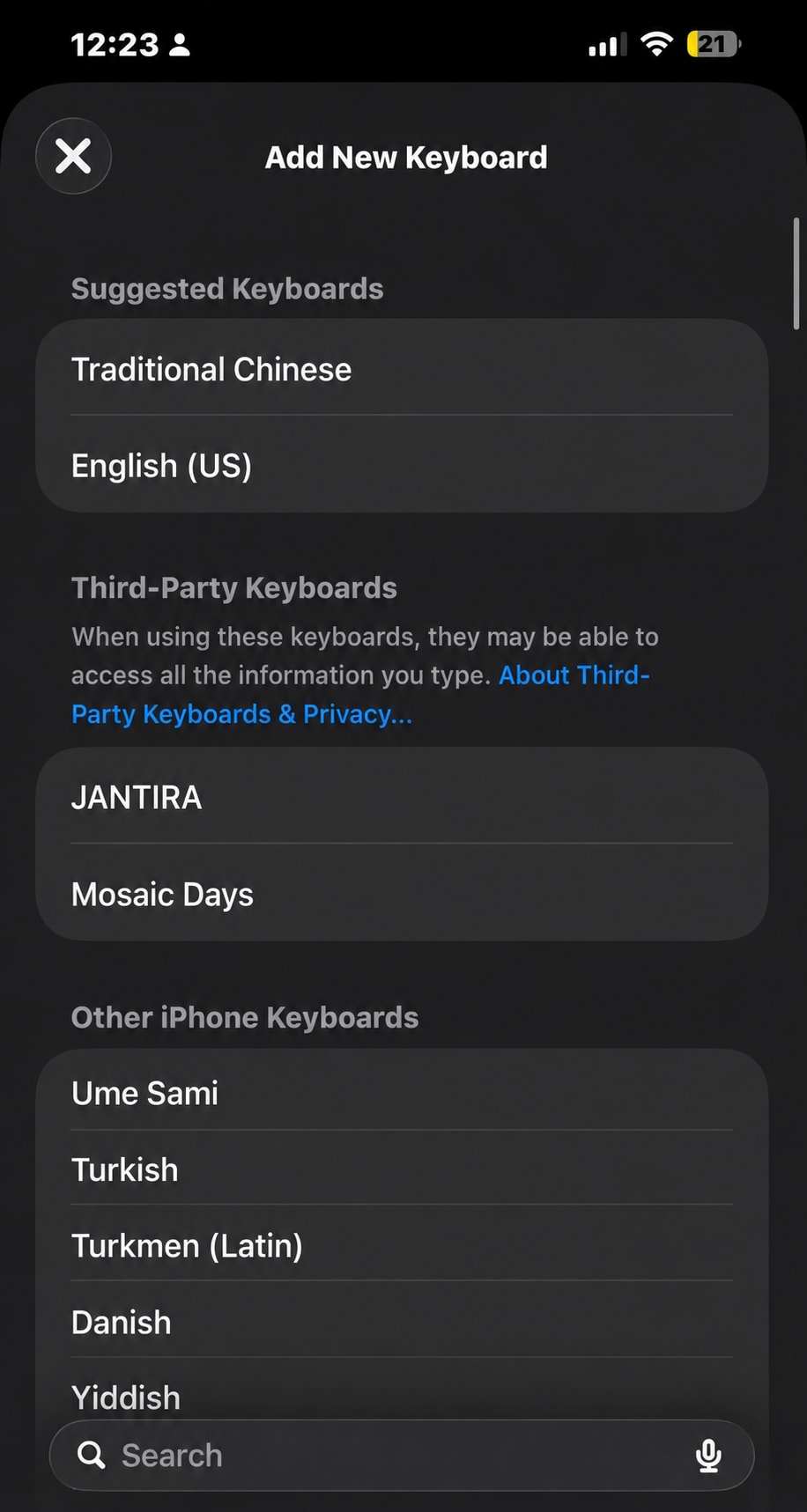
Open the iPhone Settings app → General → Keyboard → Add New Keyboard, and select "Mosaic Days."
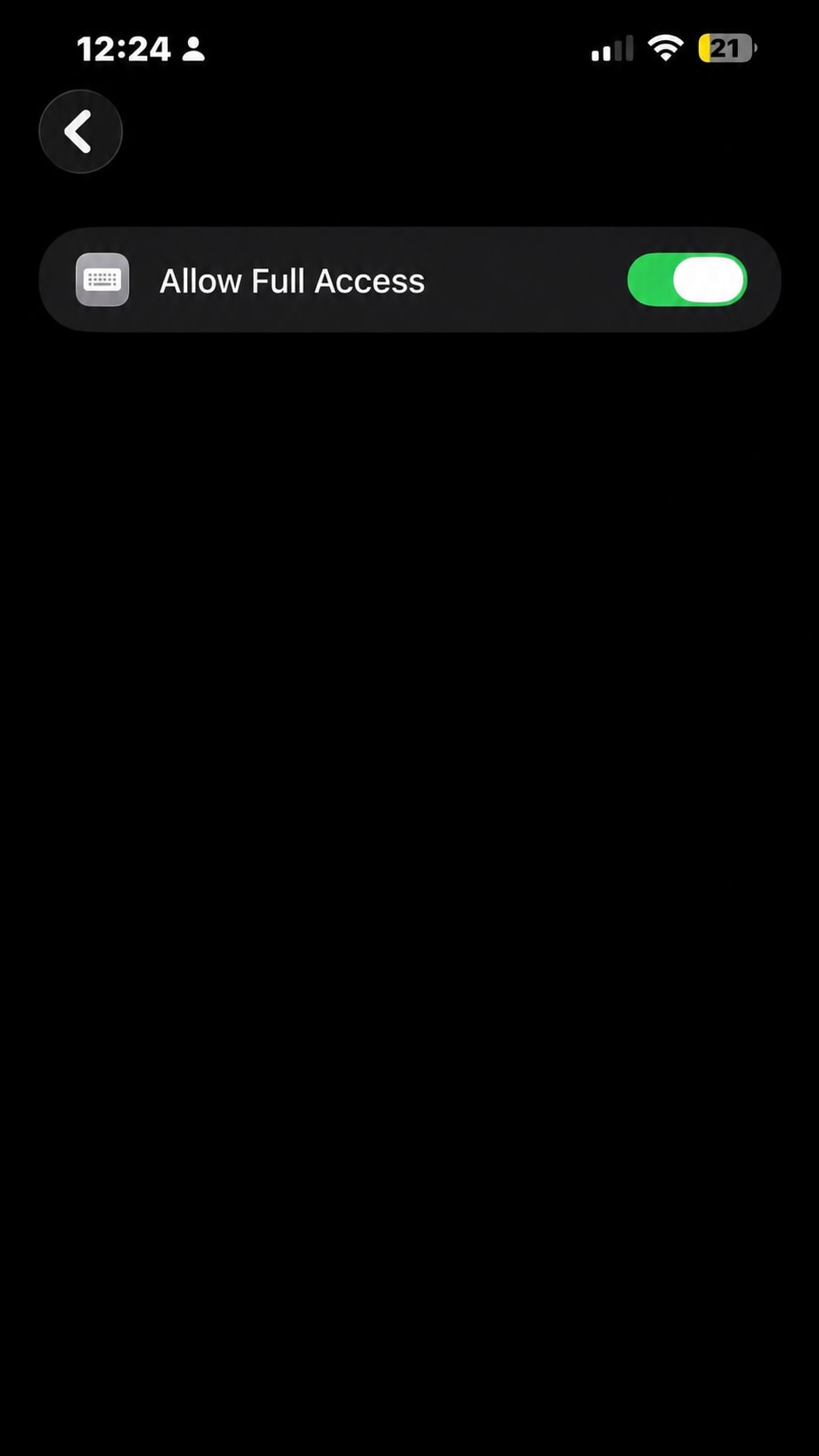
Step 2 | Enable "Full Access"
After adding it, go back to the keyboard list and tap into "Mosaic Days," then turn on "Allow Full Access."
Many people hesitate at this step: "Full Access" sounds like you're handing over everything you type — is it safe?
The answer: the keyboard needs "Full Access" simply to read the phrase data you've configured within the app, and to copy content to the clipboard — under iOS's permission system, both of these actions fall under "Full Access." This does not mean the keyboard sends everything you type to a server. Mosaic Days' phrase data is shared locally on your device via an App Group — it is never uploaded to our cloud servers, and what you actually type is never logged at all. If you're still unsure, here's one thing worth watching for: keyboards that actually steal your data typically require you to log into an online account, or continuously transmit data in the background. A keyboard that only reads local data and works fine offline carries much lower risk.
Step 3 | Switch Keyboards and Start Using It
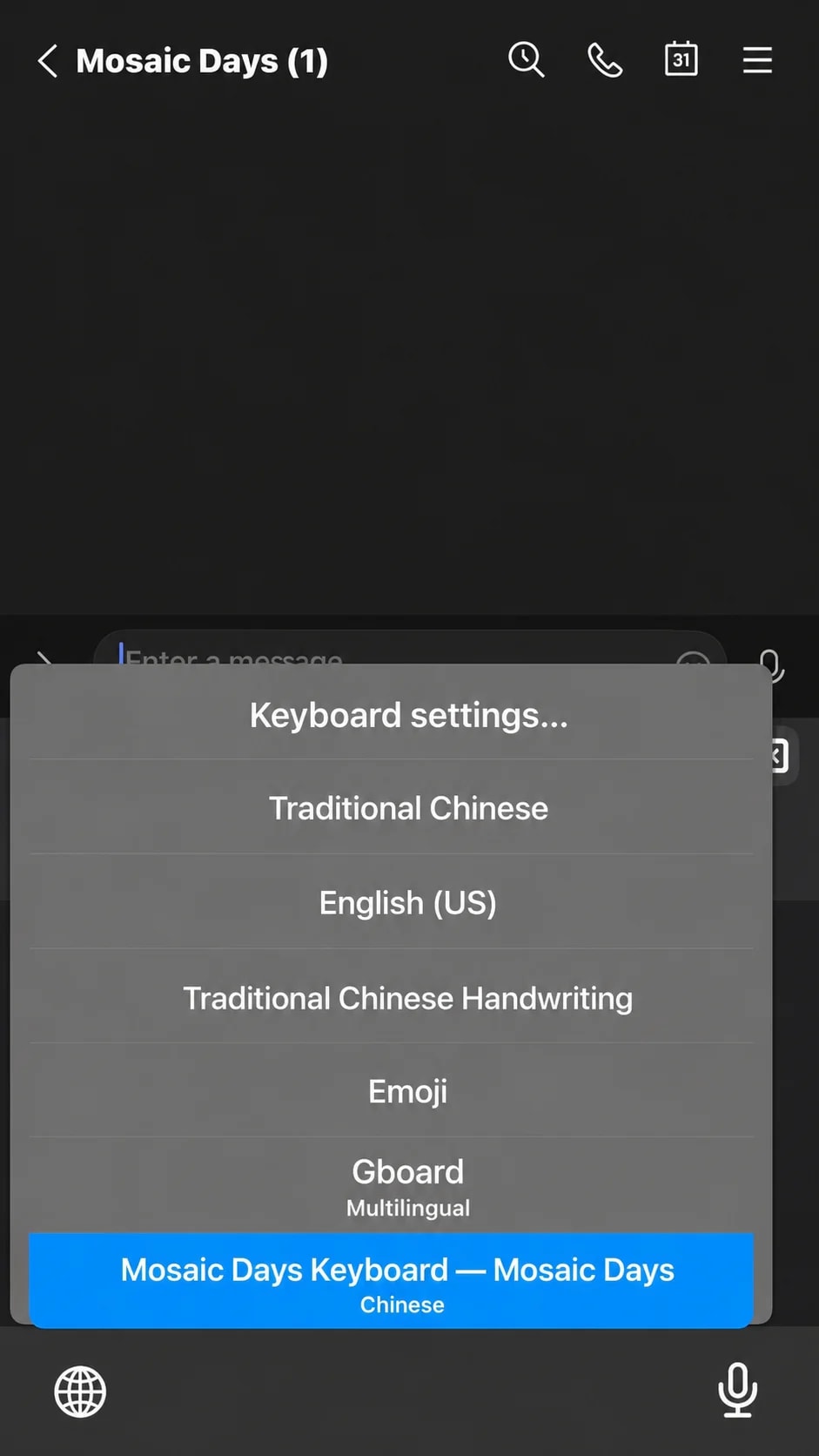
Open any chat app (Shopee Chat, LINE, Instagram, Messages — any of them), tap the input field to bring up the keyboard, then long-press (or tap) the globe icon 🌐 in the bottom-left corner of the keyboard and select "Mosaic Days." Your canned message keyboard will appear.
Feature Highlights: More Than Just "A List"
Compared to hard-memorizing a pile of phrases in Notes, the Mosaic Days canned message keyboard adds several genuinely useful details:
Group management: Create separate groups for work phrases, greetings, address info, reminders, and more — no more scrolling through dozens of lines to find the one you need.
20 icons, 15 colors: Customize each group's icon and color so you can tell "customer service group" from "greetings group" at a glance.
Long-press drag reordering: Drag your most-used phrases to the top; group order can also be freely rearranged.
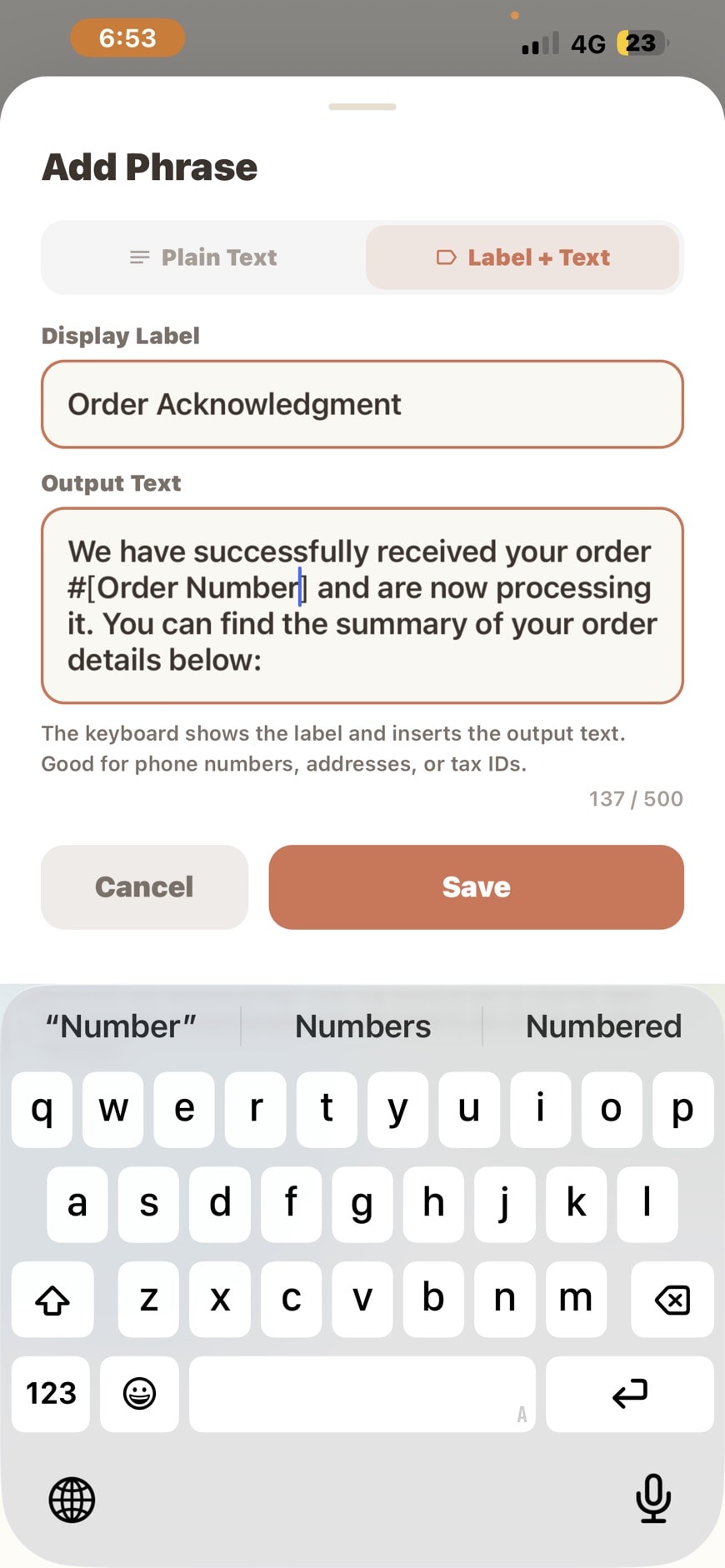
One-tap copy: Tap a phrase card and its content is automatically copied to the clipboard — just paste and send, no manual text selection needed.
Works across apps: Not limited to the Mosaic Days app itself — this keyboard can be summoned anywhere you can type (Messages, Email, social apps, Notes).
Shareable groups: If your team relies on the same set of standard replies (e.g., a customer service team or a group of realtors), groups can be shared with coworkers so everyone uses the same talking points and reply quality stays consistent.
Three Scenarios: How Others Use It
Shopee / Instagram Sellers: Customer Service Canned Messages
"Hi, this item is in stock — shipping within 1–2 business days after your order is confirmed," "Thanks for your purchase — feel free to message us with any questions," "Shipping will be delayed by 1–2 days during Momo/Shopee promotional periods, thank you for your understanding" — sort these into a "Customer Service" group. Whether the customer messages through Shopee Chat or Instagram DM, you switch keyboards, tap, and send. What you save per order isn't just typing time — it's avoiding typos from a slip of the thumb, or accidentally pasting outdated order info.
Realtors / Sales Reps: Quick Reply Scripts
"This unit is new, well laid out — I can arrange a viewing for you this afternoon if convenient," "Comparable units in this community have recently sold for around OO" — a salesperson's biggest fear isn't having weak scripts, it's still typing when the client has already read-and-ignored the message. Save your go-to scripts into grouped keyboard entries, and you can reply within 10 seconds of receiving a message — reply speed itself becomes part of your closing rate.
Teachers / Homeroom Teachers: Contact Book Standard Phrases
"Your child did great today — remember to review what we covered in class!" "Please bring OO supplies to school tomorrow" — contact book apps and class group chats involve a huge volume of repetitive typing. With commonly used phrases saved into groups, grading and filling out contact books takes a fraction of the time.
How Is This Different from iOS's Built-In "Text Replacement"?
A lot of people ask: doesn't the iPhone already have "Text Replacement" (type a shortcut, it auto-expands into a full sentence) built into Settings — why install another keyboard on top of that?
Comparison | iOS Built-in Text Replacement | Mosaic Days Canned Message Keyboard |
|---|---|---|
Management | Stored as plain text; hard to find once the list grows | list growsOrganized into groups by purpose, with icons + colors |
Finding a phrase | You have to memorize the shortcut — type it wrong and it won't trigger | Just visually scan groups and cards |
Reordering | No custom sorting supported | Long-press drag; pin your most-used phrases |
Team collaboration | No sharing supported | Groups can be shared with your team (in development at Mosaic Days) |
Best for | A handful of personal, fixed short phrases | Large volumes of phrases that need categorization |
Simply put: Text Replacement is great for a handful of personal habits like "good morning" or "got it, thanks." But once your list of frequently used phrases grows to dozens of entries, or you need categorization or team sharing, the canned message keyboard is a much better fit.
Free Version vs. Unlocking Full Features
The free version of the Mosaic Days canned message keyboard lets you create groups and phrases right away, but there are caps on the number of groups and phrases per group. If your list of frequently used phrases exceeds the free limit, or you want to unlock advanced features like group sharing, you can unlock them by watching one ad per day, or upgrade to a paid plan for full access — using the same unlock system shared across Mosaic Days' other modules (expense tracking, quotes, business card management), so you don't need to subscribe to each feature separately.
Conclusion: Let the Keyboard Handle the Repetition
Typing shouldn't mean retyping the same thing over and over. Spend three minutes setting up your canned message keyboard, and from then on — whether it's Shopee customer service, realtor scripts, or contact book messages — you can pull it up with one tap in any app, copy, paste, and send. Save that time for the conversations that actually need your full attention.
Beyond the Quick Keyboard, Mosaic Days also offers quotes, business card CRM, to-do lists, and other productivity features — install once instead of subscribing to multiple separate tools. Check out the full productivity feature overview (/features/work) to see what else can help you save time.
Download Mosaic Days on the App Store now: https://apps.apple.com/us/app/mosaic-days/id6760643904 — set up your canned message keyboard in 3 minutes.